Why don't my changes show on my website?
Changes to your widget and to videos that are already live wait as a draft until you press Publish. That way nothing half-done reaches your site.
1 min read
Once your widget's code has been copied, your website only changes when you press Publish. Until then you see Not published yet at the top. (Before you copy the code, nobody sees the widget yet, so changes save straight away and there's no Publish button.)
Publish widget changes
- Press Widget on the left.
- Press Publish at the top.
- Check the list of changes and press Publish changes.
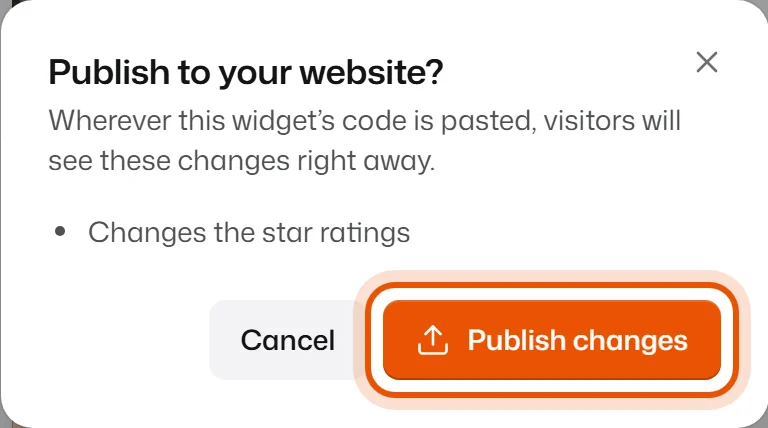
Visitors see the new version right away. Reload your website to check.
Publish changes to a video
If you trim a video or change its captions while it's already on your website, the editor also shows Not published yet. Press Publish at the top of the editor, then Publish changes.
Changed your mind?
Press Discard changes at the top of the Widget page. Everything goes back to what your website shows now. Your website doesn't change.
I pressed Publish but my website still looks the same
- Reload your website page. On a phone, close the tab and open it again.
- Check the top of the Widget page says Live on your website. If it says Code not copied yet or Not on a site yet, the code isn't on your website. See How do I put videos on my website?
- Your website may keep an old copy for a while (a "cache"). If you use a cache plugin, clear it.
"One of the videos needs preparing first"
A video in your widget still needs a quick conversion. Open it and press Prepare for website. See What does "Needs preparing" mean?
Related
Didn’t solve it?
Search in your own words, or try the fix-it guides.