/
How do I email my customers from SayCandid?
On Pro, paste your customers' emails and each one gets a personal link, with friendly reminders.
1 min read
Send invites
- Open a request (Review requests on the left, then click it).
- Under Email it to clients, press Email clients.
- In Their emails, paste the addresses. You can paste a list from a spreadsheet, for example
Tom Smith <tom@example.com>. Up to 50 at a time. - Tick These people are my customers and agreed to hear from us about a review.
- Press Send to ….
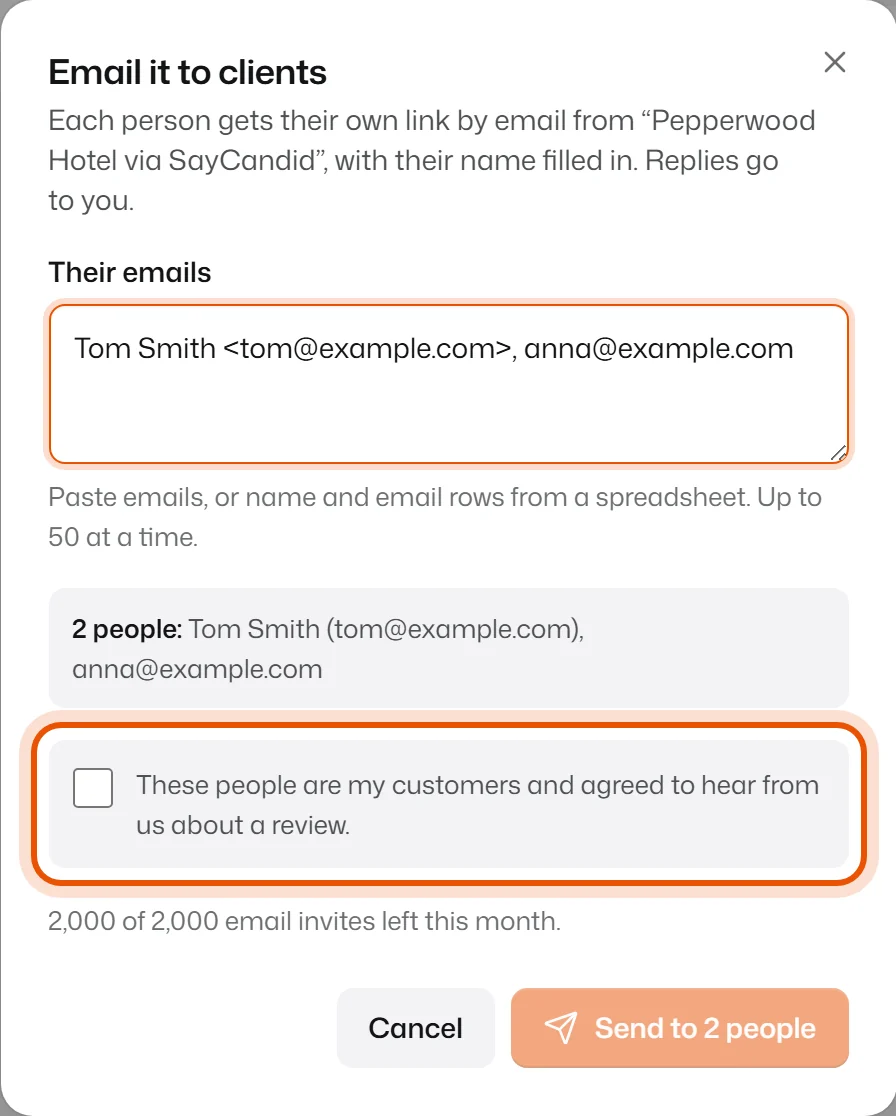
Each person gets their own email from "Your business via SayCandid", with their name filled in. If they reply, the reply goes to you.
Reminders
If someone hasn't recorded yet, we send a friendly reminder on day 3 and day 7. Reminders stop as soon as they record or unsubscribe.
See who recorded
Each person in the list shows a status:
- Sent: the email went out.
- Opened: they opened their link.
- Recorded: their video is in.
- Can't email: they unsubscribed or the address doesn't work. Send them your link another way, like a text message.
"Some addresses were skipped"
SayCandid tells you why in plain words. The usual reasons: a typo, letters like ą or š in the address, the person is already on the list for this request, or they unsubscribed before.
"It says to confirm my account email first"
Open the email we sent when you signed up and press Confirm my email. Then try again.
Related
Didn’t solve it?
Search in your own words, or try the fix-it guides.