/
How do I add my logo and business name?
Your logo and name show on the page your customers record on. Add them once in Settings.
1 min read
Customers trust a link more when they see who is asking. Add your logo and name once, and every link uses them.
- Open your account menu (your email, bottom left) and choose Settings.
- Stay on the Business tab.
- Check your Company name. If you want a person's name to show too, type it in Your name, for example "Emma". Leave it empty to show only the company.
- Under Logo, press Upload logo and pick your logo file.
- Press Save.
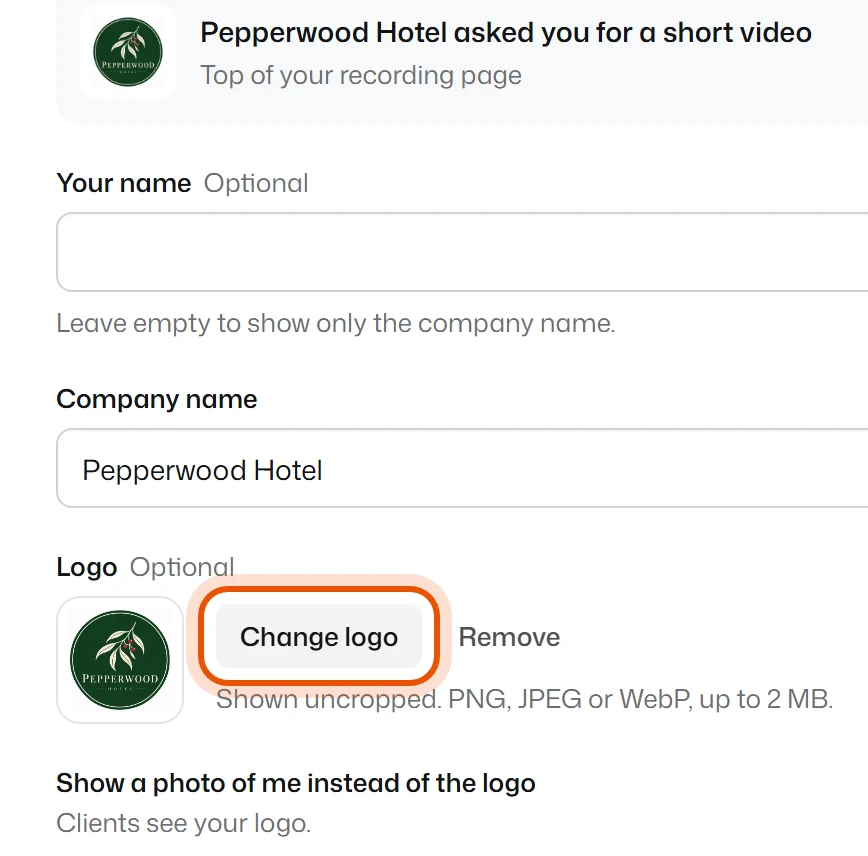
The box at the top shows how your customers see it: "Pepperwood Hotel asked you for a short video", with your logo.
Good to know
- The logo can be a PNG, JPEG or WebP picture, up to 2 MB. It's shown uncropped, so a square logo looks best.
- Prefer your face to a logo? Turn on Show a photo of me instead of the logo.
- Add Your website. If someone opens an old or closed link, they get a button to your website instead of a dead end.
- Have a privacy policy? Paste its link in Privacy policy link. It shows next to the box your customers tick to agree.
"It says the image is too big"
The limit is 2 MB. Make the picture smaller (about 800 × 800 pixels is plenty) and try again.
Related
Didn’t solve it?
Search in your own words, or try the fix-it guides.