How do I change how the videos look on my site?
Pick a layout, colours, corners and a heading, and choose what each video shows. The preview updates as you go.
1 min read
Press Widget on the left. The steps on the left change the look, and the preview on the right shows the result. Use Desktop, Phone or Both above the preview to check every screen size.
Videos: what each video shows
Under On each video, turn on or off: Names, Star rating, Quote and Captions. With How many to show you can show all your videos or only the first 3, 6, 9 or 12.
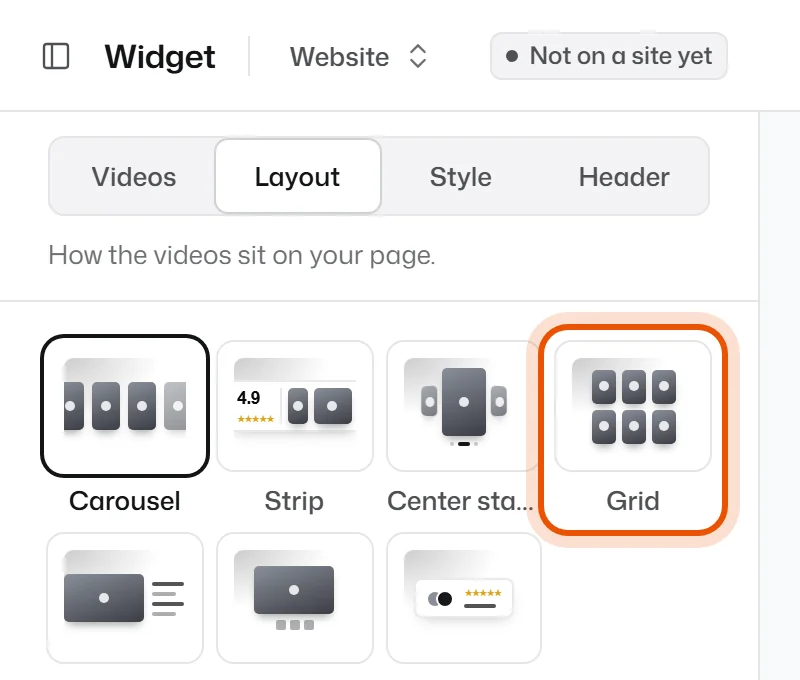
Layout: how the videos sit on your page
Pick one: Carousel, Strip, Center stage, Grid, Spotlight, Single or Badge. Badge is a small rating badge that opens the videos when tapped, nice for a corner of your site.
Style: colours and corners
- Colours: Light, Dark, or Auto (follows your visitor's phone or computer).
- Background: None, Soft or Glow.
- Corners: Sharp, Soft or Round.
- Shadow: Soft or None.
- Accent colour: the colour of the play buttons and stars. Use your brand colour.
Is your website dark? Turn on Dark site above the preview to see it on a dark page.
Header: the line above the videos
Write a Heading and a Line under the heading, and show your Rating summary (your average stars). Turn off Show header to show only the videos.
Show it on your website
Your changes save as a draft. Press Publish at the top to show them on your website. See Why don't my changes show on my website?
Related
Didn’t solve it?
Search in your own words, or try the fix-it guides.