/
How do I download a video for ads?
Get an MP4 with your trim, shape and captions burned in, ready for Facebook, Instagram or anywhere else.
1 min read
- Open the video (Video reviews, click it, press Edit). Trim it and add captions first if you want them.
- Press Download for ads at the top.
- Pick the shape. Leave Burn in captions on to put the captions into the video.
- Press Make video and keep the tab open. A one-minute video takes about a minute.
- When it says Your video is ready, it's in your Downloads folder.
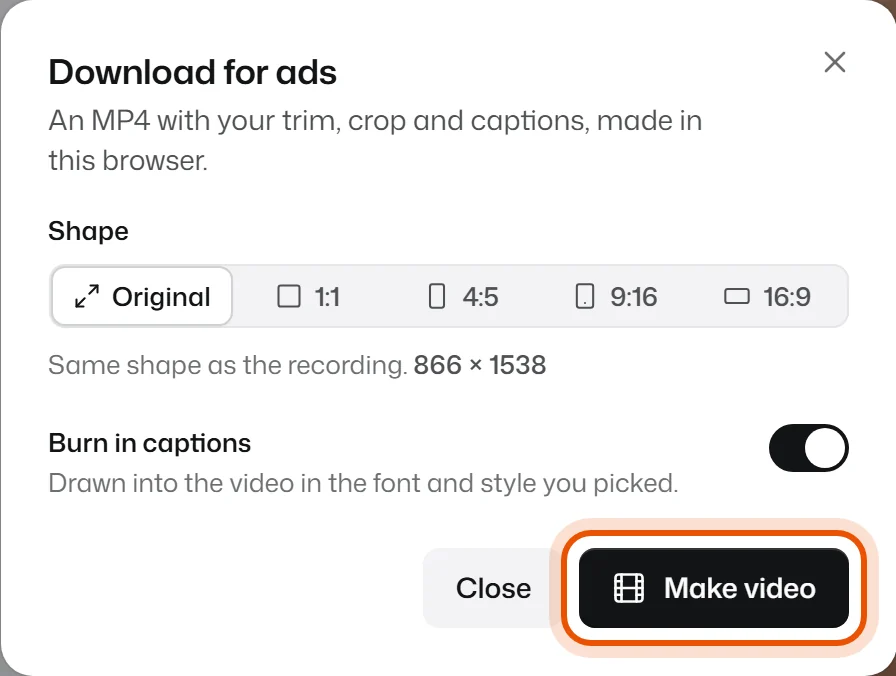
Need another shape too? Press Another shape.
Good to know
- Free has 3 downloads a month. Pro has as many as you like.
- Ad videos can be up to 3 minutes. Trim longer ones first.
- It works on a computer in Chrome or Edge, or in Safari on a Mac.
- Want the file exactly as your customer sent it? Open the ⋯ menu and choose Download original.
"Download for ads needs a recent desktop Chrome or Edge"
Open SayCandid on a computer in Chrome or Edge (or a new Safari on a Mac) and try again. Phones can't make the file.
"This will look soft"
You zoomed in a lot in Shape, so the picture gets blurry. Zoom out a little for a sharper video.
Related
Didn’t solve it?
Search in your own words, or try the fix-it guides.