My customer can't record. What now?
Camera blocked, page opened inside Instagram or Facebook, or an old browser? Most problems take a tap to fix.
2 min read
The easiest fix almost always works: film it with the phone's camera app, then upload it. On the first screen your customer can press Upload a video instead. See Can my customer send a video they already filmed?
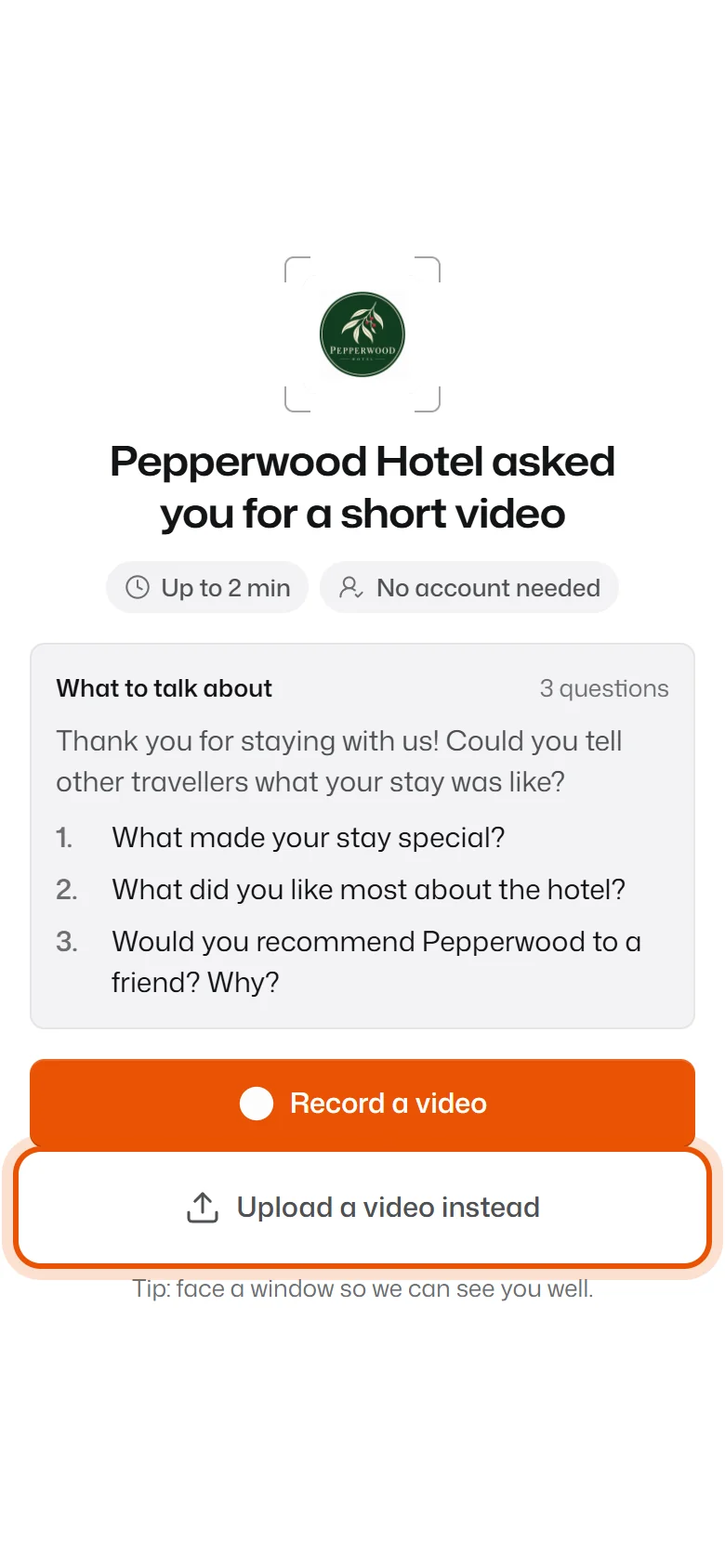
If they'd rather record on the page, find the message they see:
"Your camera is blocked"
The browser was told not to use the camera.
- Tap the small icon left of the web address (a lock or a camera).
- Allow the camera and the microphone.
- Reload the page and press Record a video again.
"The camera works best in Safari" (or Chrome)
The link was opened inside an app like Instagram, Facebook or Messenger. Those apps often block the camera.
- On an iPhone: tap ••• at the top and choose Open in browser.
- On Android: tap Open Chrome, or Copy link and paste it into Chrome.
"Camera not starting?"
The browser is waiting for permission. Look for a pop-up asking to use the camera and tap Allow. If nothing shows, use Upload a video instead.
"Your camera is busy"
Another app is using the camera, for example a video call. Close it and try again.
"No camera found" or "This browser can't record"
The device has no camera, or the browser is too old. Film it with a phone camera and upload it, or open the link on a phone.
"We can't hear you"
Check the microphone isn't muted or covered, and that the browser may use it (same steps as for the camera).
Sending is slow or stops
Videos are big, so a weak connection takes time. Ask them to keep the page open. If it stops, the video is saved in their browser. When they open the link again on the same phone, they see You have a video that wasn't sent and can press Send it.
Related
Didn’t solve it?
Search in your own words, or try the fix-it guides.