How to collect remote video testimonials from customers
Want videos from customers who can't come to you? Here's how to ask, help them record on their own phone, and get the videos ready to share.
The SayCandid team4 min read
Key takeaways
- Send customers a link so they can record when it suits them.
- Give them a few questions and tell them where you'd like to use the video.
- Watch the video, check their permission and make any edits before you share it.
In this article
- 11. Choose the customer and the moment
- 22. Send a short, personal request
- 33. Put two or three questions on the page
- 44. Give recording tips without making it complicated
- 55. Let them record and review it themselves
- 66. Review the video before sharing it
- 77. Put the story where it is relevant
- 8What about following up?
- 9Make the first request
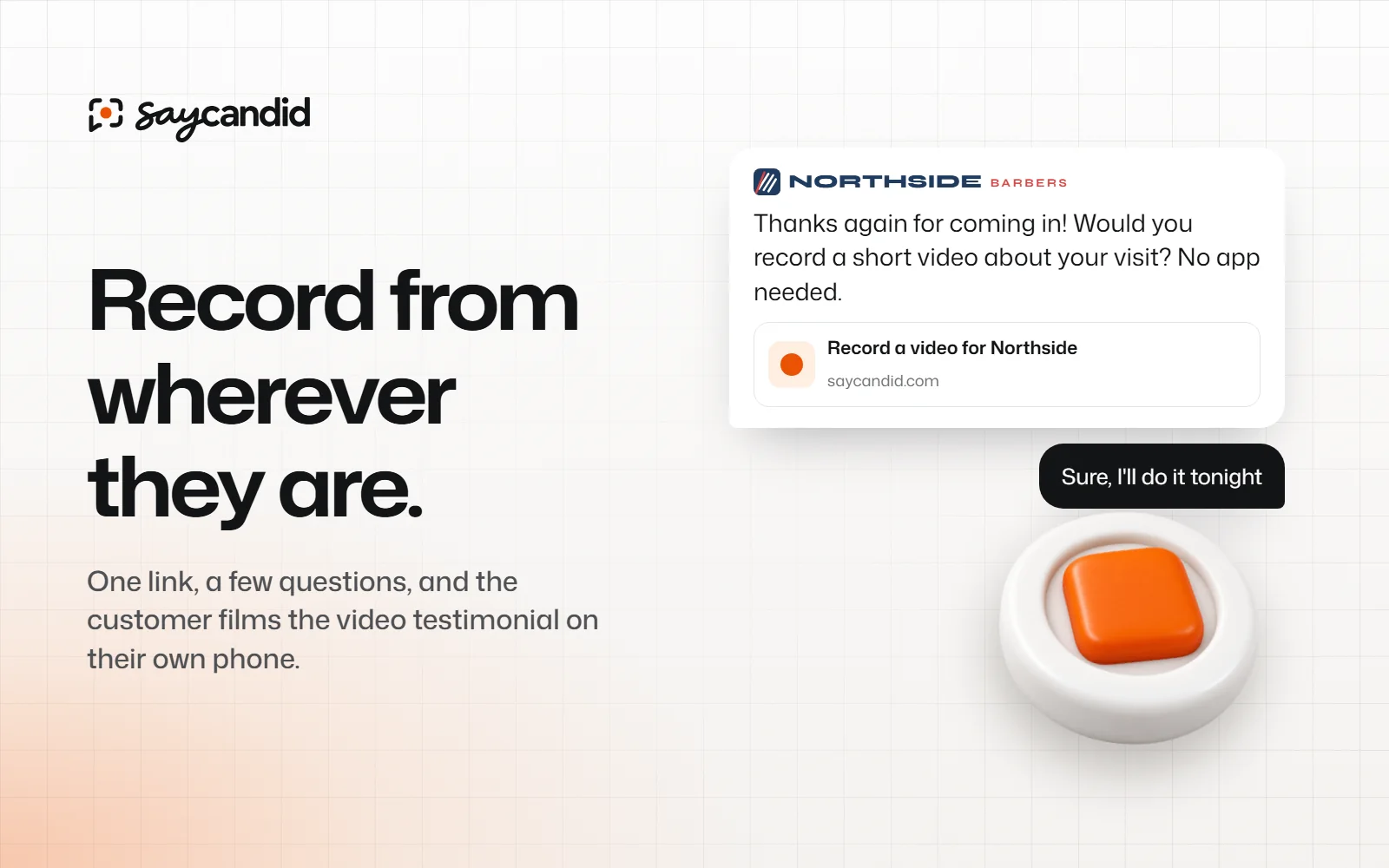
To collect a video testimonial remotely, send your customer a link and a few questions. They can record on their phone or computer, wherever they are. When the video arrives, watch it and check their permission before you share it.
Your customers don't have to come to you to share their experience. They might be in another city, between meetings or already home after their appointment. Give them a way to record when they have a moment.
1. Choose the customer and the moment
Think of a customer who has used your product or service. Maybe you've just finished their project. Maybe they visited last week and told you how it went. That's a good place to start.
Tell them what you're asking for and where you'd like to use the video. And let them know it's okay to say no.
2. Send a short, personal request
Keep your message short. Tell them what the link is for and how long a video you have in mind. They don't need to prepare a speech.
Hi [name], thanks again for choosing us for [service/project].

Would you be happy to record a short video about your experience? You can use this link on your phone or computer: [link]

The questions are on the page, and you can watch your recording before sending it. No pressure if it isn't for you. Thank you!Make the message sound like you, and tell them where you'd like to share their video. Need another starting point? Our request message guide has more examples.
3. Put two or three questions on the page
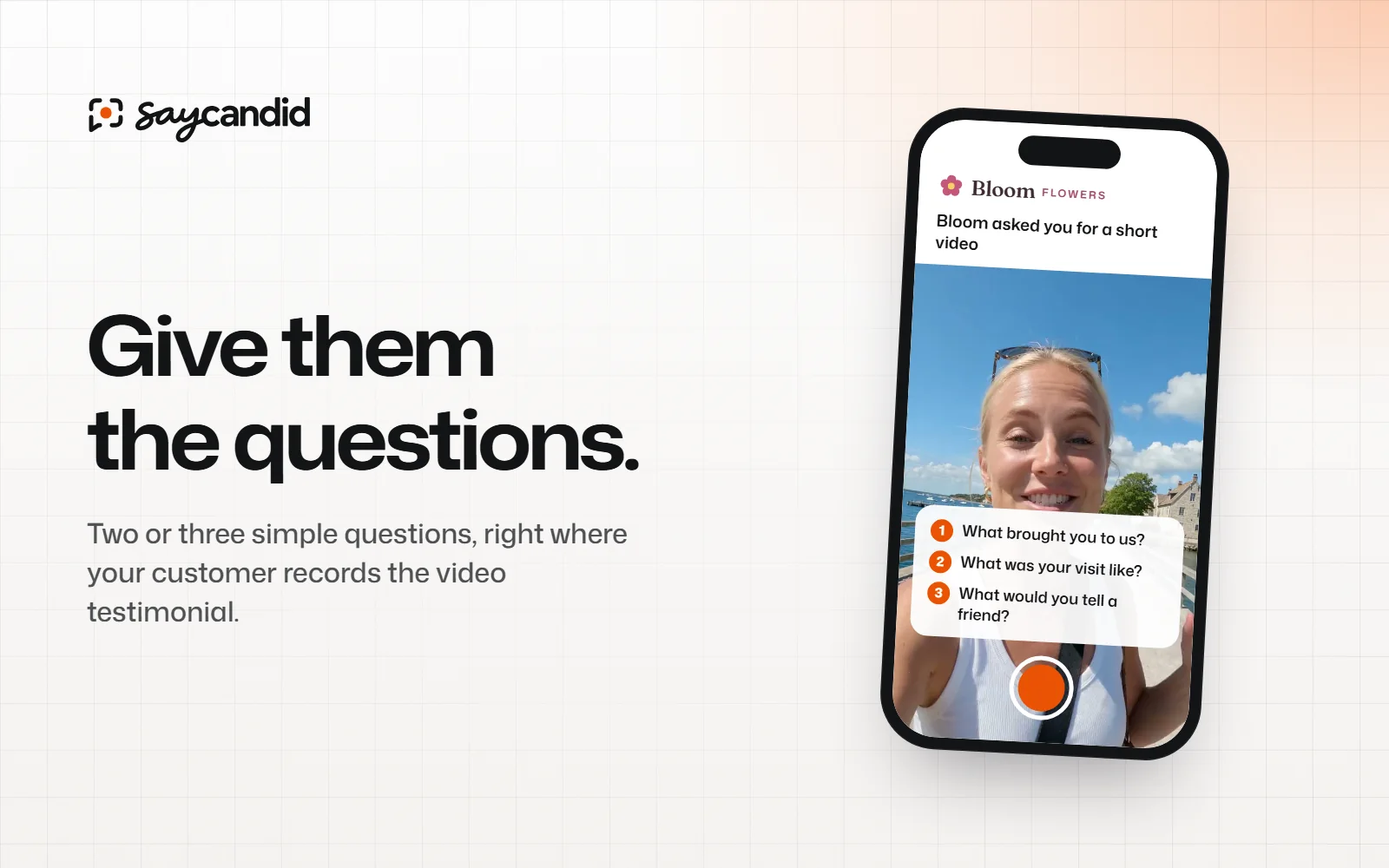
Have you ever opened your camera and wondered what to say? Your customer might feel the same. Give them a few questions to help them start:
- What were you looking for when you contacted us?
- What was your experience like?
- What would you tell someone considering us?
Change the questions to fit your business. An agency might ask, "What was it like working with our team?" A salon could ask what the customer's first visit was like.
See the full list of video testimonial questions if you need a set for your industry.
4. Give recording tips without making it complicated
Your customer doesn't need special equipment. A few small tips can help them feel ready to record:
- Find a reasonably quiet spot.
- Face a window or another light source so their face is visible.
- Hold or place the phone where it can capture their face and voice.
- Speak naturally and answer the questions that feel relevant.
- Watch the video back before sending it.
Already have a video they're happy with? They can upload it instead. Remind them not to include private details or other people who haven't agreed to appear.
A recording checklist you can send
Copy this into your message if your customer asks how to record:
Before you record:

1. Find a quiet place and face a window if you can.
2. Open the link on your phone or computer.
3. Answer whichever questions feel right to you. There's no script to memorise.
4. Watch the video back. You can record it again if you like.
5. Send it when you're happy with it. Thank you!If the camera or microphone isn't working, here's what to try. They can also upload a video they've already recorded.
5. Let them record and review it themselves
When your customer opens a SayCandid link, they'll see your note and questions. They can record a video or upload one they've already made. Then they can watch it back and try again if they want to. No app or account needed.
Before they send it, they'll enter their name and agree to the website and ad use shown on the page. The video then arrives in your dashboard. Here's what the customer sees at each step.
If someone has trouble recording, they might prefer to upload a video they've already made or leave a written review. And if they'd rather not take part, that's okay too.
6. Review the video before sharing it
Watch the whole video before you share it. Can you hear what the customer says? Are the details right, as far as you know? Have they agreed to the way you want to use it?
You can trim the start or end and add captions. Check the captions for mistakes, especially names and numbers. Keep enough of the video to show what your customer meant. If a claim needs more context, include it or choose another clip.
7. Put the story where it is relevant
Think about who needs to see the video. A client talking about an agency project could help someone reading a proposal for similar work. A customer talking about a visit might fit beside your booking information.
You can add approved videos to your website with a SayCandid widget or prepare a captioned download for ads. See where to put testimonials on your website for placement ideas.
What about following up?
People get busy, and your message can get buried. A friendly reminder is fine, but give them room to say no.
With SayCandid Pro, you can send email invites with reminders. If someone hasn't recorded, they'll get a reminder after three days and another after seven. The reminders stop when they record or unsubscribe. Only email customers who agreed to hear from you about a review.
Make the first request
Ready to ask someone? Add two or three questions, copy your SayCandid link and send it to a customer. Here's how to create a request.
Questions people ask
- What is a remote video testimonial?
- It's a video your customer records from wherever they are, often on their own phone or computer. They can then send it to you through a link.
- Do customers need to install an app?
- Not with SayCandid. Customers can open your link and record or upload a video in their browser. They don't need an app or account.
- Can a customer upload a video they already recorded?
- Yes. A SayCandid request offers an upload option as well as browser recording.
Keep reading
Customer testimonials5 min read
Video testimonial questions that get useful answers
Not sure what to ask for a video testimonial? Find simple questions that help customers talk about their experience in their own words.
Customer testimonials5 min read
How to ask customers for video testimonials (with message templates)
When to ask, what to say and which questions get a natural answer. Plus copy-and-paste testimonial request messages for WhatsApp, text and email.