Small business website checklist: what to include before you launch
Getting your small business website ready? Check your services, contact details, booking process and more before you share it.
The SayCandid team6 min read
Key takeaways
- Make it easy for people to see what you do and how to get in touch.
- Try booking or sending an enquiry from your phone before you launch.
- Add customer stories where they help answer a visitor's questions.
In this article
- 1Copy your launch checklist
- 21. Explain what you do on the first screen
- 32. Give each important service or product enough detail
- 43. Make the next step obvious
- 54. Check contact and location details
- 65. Show the information buyers ask about
- 76. Add relevant customer stories
- 87. Make the website usable on a phone
- 98. Test forms and confirmation messages
- 109. Check accessibility and speed
- 1110. Check search basics
- 1211. Review your privacy and business information
- 1312. Give the site a final customer test
- 14Put customer stories on the pages where they matter
A small business website should make three things easy to find: what you do, whether it's right for the visitor, and how to get in touch. Before you launch, check your services, contact details, booking process and how everything looks on a phone.
Imagine someone has just found your website. Can they tell what you do? Can they see if you work in their area? And can they get in touch without clicking through three pages?
Let's go through the things worth checking before you share the site.
Copy your launch checklist
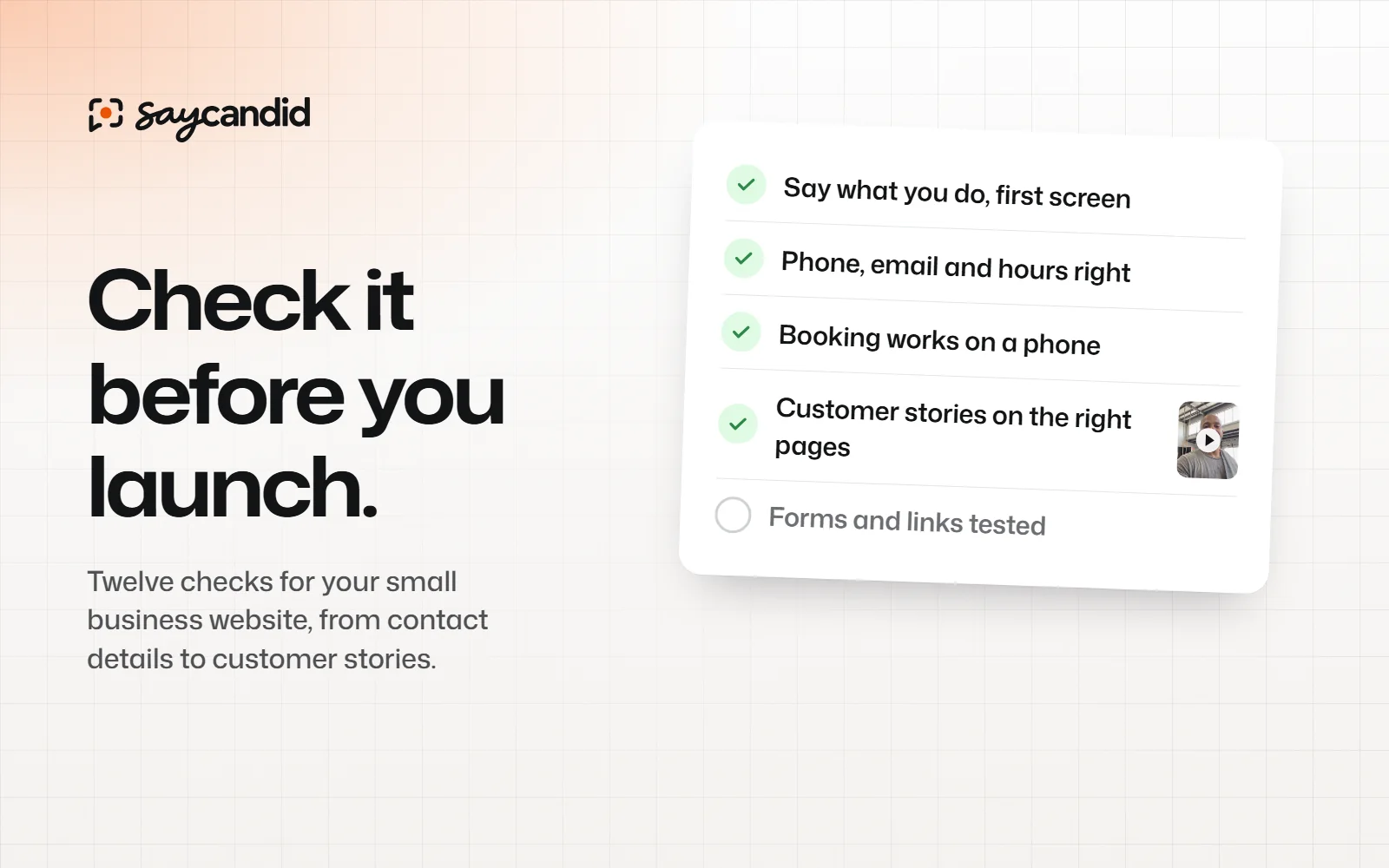
Want a short list to work through? Copy this into your notes and tick each item as you check it. The rest of the article explains each step.
[ ] A visitor can tell what my business does.
[ ] My main services or products have clear details.
[ ] It's easy to book, buy or contact me.
[ ] My phone number, email, address and hours are correct.
[ ] I've answered the questions customers ask before buying.
[ ] Any customer stories are real and I have permission to share them.
[ ] I've tested the site on a phone and a computer.
[ ] My forms, links and confirmation messages work.
[ ] I've checked captions, readability and keyboard navigation.
[ ] I've checked page speed and basic search settings.
[ ] My business and privacy information is up to date.
[ ] Someone unfamiliar with the site has tried to use it.If you aren't ready to tick something off, write down who'll fix it and when. Start with anything that prevents someone from contacting you or completing a booking.
1. Explain what you do on the first screen
Say what you do in words your customers would use. If your location matters, include it so people know whether they're in the right place.
For example, "Wedding photography in Manchester" tells people more than "Capturing moments that matter." You can still show your personality. Just make sure visitors don't have to guess what you offer.
Check that your heading, the sentence below it and your images match what you actually sell.
2. Give each important service or product enough detail
Your service names are a start, but people will probably have a few more questions. For each main service or product, explain:
- What is included.
- Who it is for.
- How the service or purchase works.
- Any practical requirements, such as location or booking time.
- What the customer should do next.
If you offer a few options, explain the difference. Photos and examples can help people see what they're choosing.
3. Make the next step obvious
What do you want someone to do after reading the page? Book, request a quote, buy or send you a message? Make that next step easy to spot.
"Book an appointment" tells someone what will happen when they click. "Submit" doesn't. Make your contact details easy to find for people who'd rather call or email.
If you have an enquiry form, only ask for what you need. If you tell people when to expect a reply, make sure your team can keep to it.
4. Check contact and location details
Check your business name, contact details, address, service area and opening hours wherever they appear. If customers visit you, tell them where to find you. If you travel to them, say which areas you cover.
Try the phone number, email link and map directions yourself. Your website can't help someone book if they can't reach you.
5. Show the information buyers ask about
Think about the questions you answer before a sale:
- How much does it cost, or how do I get a quote?
- How long does it take?
- What happens after I book?
- Do you work with customers like me?
- What should I bring or prepare?
- What happens if I need to change an appointment?
Answer the questions that apply to you near the service, product or booking details. If there's something a customer needs to know before buying, make it easy to find.
6. Add relevant customer stories
Someone who's never bought from you may want to hear from someone who has. In BrightLocal's 2026 survey, 97% of the 1,002 US adults surveyed said they read reviews for local businesses. That doesn't tell you how your website will perform, but it shows why customer feedback is worth making easy to find.
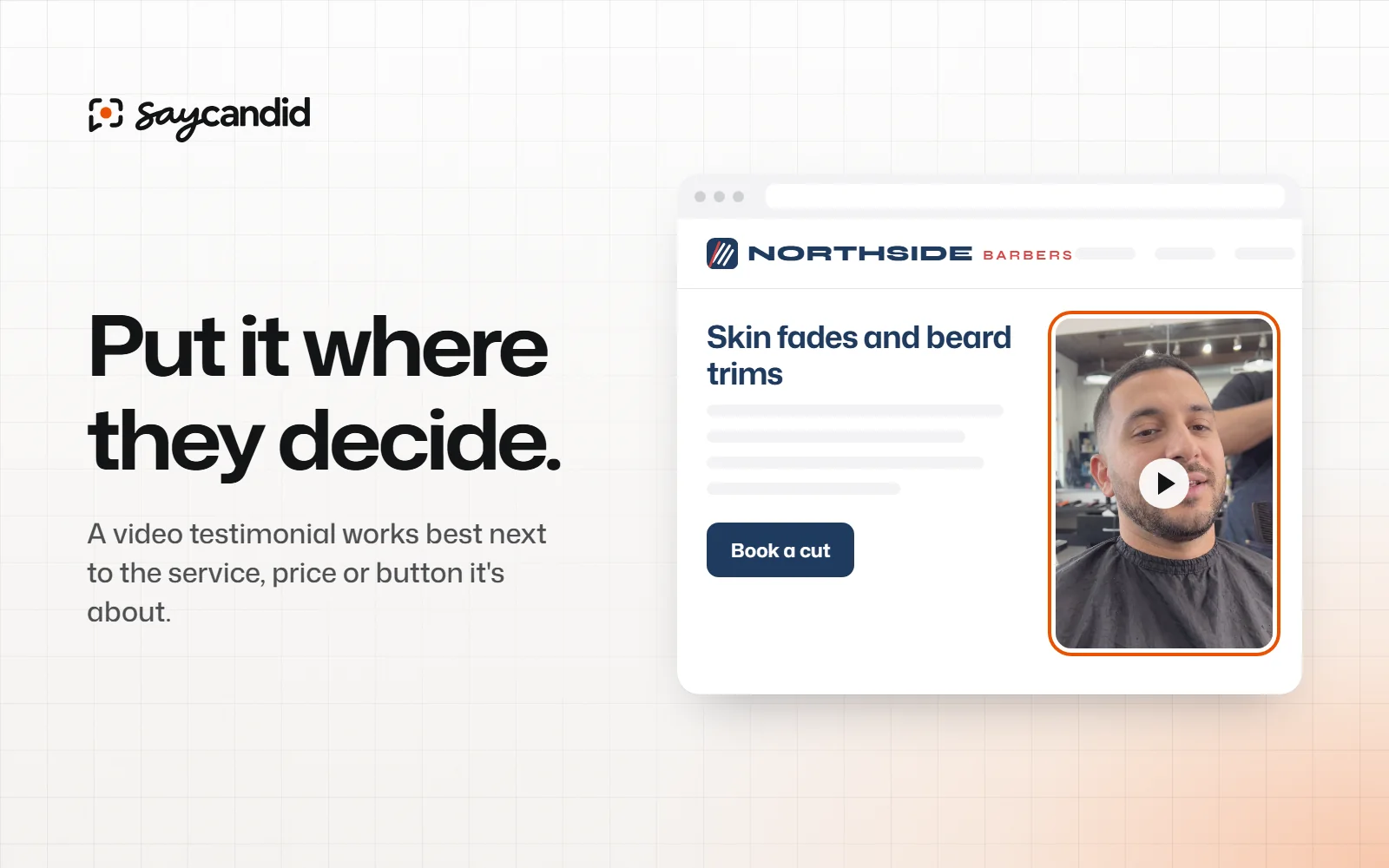
Share real customer feedback, and ask permission for how you plan to use it. A video about a service could sit on that service's page. Someone talking about their first visit might be helpful near your booking details. Add a short line so visitors know what the video is about.
If you have public reviews, make those easy to find too. Here's more on where to put testimonials on your website.
7. Make the website usable on a phone
Open your website on an actual phone, not only in your editor's preview. Check that:
- Text is readable without zooming.
- Buttons and links can be tapped.
- Images and videos fit the screen.
- Navigation and menus work.
- Forms can be completed using the phone keyboard.
- Important information is not hidden behind another element.
Now try using the site like a customer. Open a service page, find what you need and try to book or send an enquiry. If you get stuck, make a note of where.
8. Test forms and confirmation messages
Send a test enquiry or make a test booking. Did it reach the right place? Did the form work? Could you tell whether it went through?
If you have an online store, test the payment, delivery and order confirmation steps using a suitable test method. Check the policies and contact details customers see along the way.
Fix broken links and remove placeholder text before sharing the site widely.
9. Check accessibility and speed
Check that your text is easy to read against its background and that videos have accurate captions. Add useful descriptions to images where appropriate. Try using the main controls with a keyboard too.
Large images and videos can slow a page down. Try loading your site on a normal phone connection and see how it feels. Google's PageSpeed Insights can help you find technical issues too.
You can also put your page address into WAVE's accessibility checker to find some common issues. It won't catch everything, so keep the phone and keyboard checks too.
10. Check search basics
Give each main page a clear title and heading. Use words that describe your service and location, but don't force the same search phrase into every sentence.
Make sure search engines can reach the pages you want people to find. If you have access to search tools, submit your sitemap. And if you have a local business profile, check that its details match your website. Google's Search Essentials explains the basics.
If a page isn't appearing in Google and you manage the site in Search Console, URL Inspection can show you what Google knows about that page. Requesting indexing doesn't guarantee when or whether it will appear.
11. Review your privacy and business information
Check the policies and business information your site needs, including how you handle enquiries and customer data. What applies will depend on where you operate and what you collect.
If you use customer photos, quotes or videos, record the permission you have and make it easy to handle a request to remove them.
12. Give the site a final customer test
Ask someone who doesn't know your business to find a service and get in touch. Watch where they hesitate. Try not to tell them which buttons to press; seeing where they get stuck will help you fix the site.
Write down what needs fixing. Start with anything that stops someone from contacting, booking or buying.
Put customer stories on the pages where they matter
Once the essentials are in place, think about a customer story that would fit one of your pages. With SayCandid, you can send a recording link, watch the video and add it to your website when you're ready.
Start with one relevant experience and add an approved video to your website.
Questions people ask
- What should a small business website include?
- Start with what you do, what you sell and how to get in touch. Add the details customers need, such as your location, opening hours and prices.
- Does a small business need testimonials on its website?
- Customer stories can help people see what an experience with your business is like. Share real feedback with permission, and keep your contact and booking details easy to find.
- How do I check my website before launching?
- Open it on a phone and a computer. Try finding a service, clicking the links and sending an enquiry or booking. Check that your business details are right too.
Keep reading
Website conversions4 min read
Where to put testimonials on your website
Not sure where to put customer testimonials? Here are the pages and places to try, from your homepage to your booking button.
Testimonial tools6 min read
Review software vs video testimonial software: what do you need?
Looking for a review tool? Learn what review software and video testimonial tools do, and whether you might need both.